Isolated workspaces
A workspace is one repository, one branch, and one place on disk for a single stream of work.
An isolated workspace is a git-backed checkout of one repository, on one branch, for one stream of work.
Proliferate uses workspaces so an agent can edit files, run commands, and build up context without colliding with your primary checkout or with an agent working somewhere else.
What is a workspace
A workspace bundles a checkout with everything you need to supervise work on it.
| Piece | What it is |
|---|---|
| Repository | The git codebase behind the workspace, linked from a local folder or cloned from a connected provider. |
| Branch | The branch checked out in the workspace. This is the unit you review, publish, and merge. |
| Checkout | The files on disk: either a folder you already had, or a git worktree Proliferate created. |
| Sessions | The chats running in the workspace, each with its own agent, model, and transcript. |
| Surfaces | Terminals, a file browser, a preview, and git review, all scoped to that checkout. |
A workspace is not a machine. One runtime on your Mac backs every local workspace you have open; what a workspace owns is a branch and a directory, not a computer of its own.
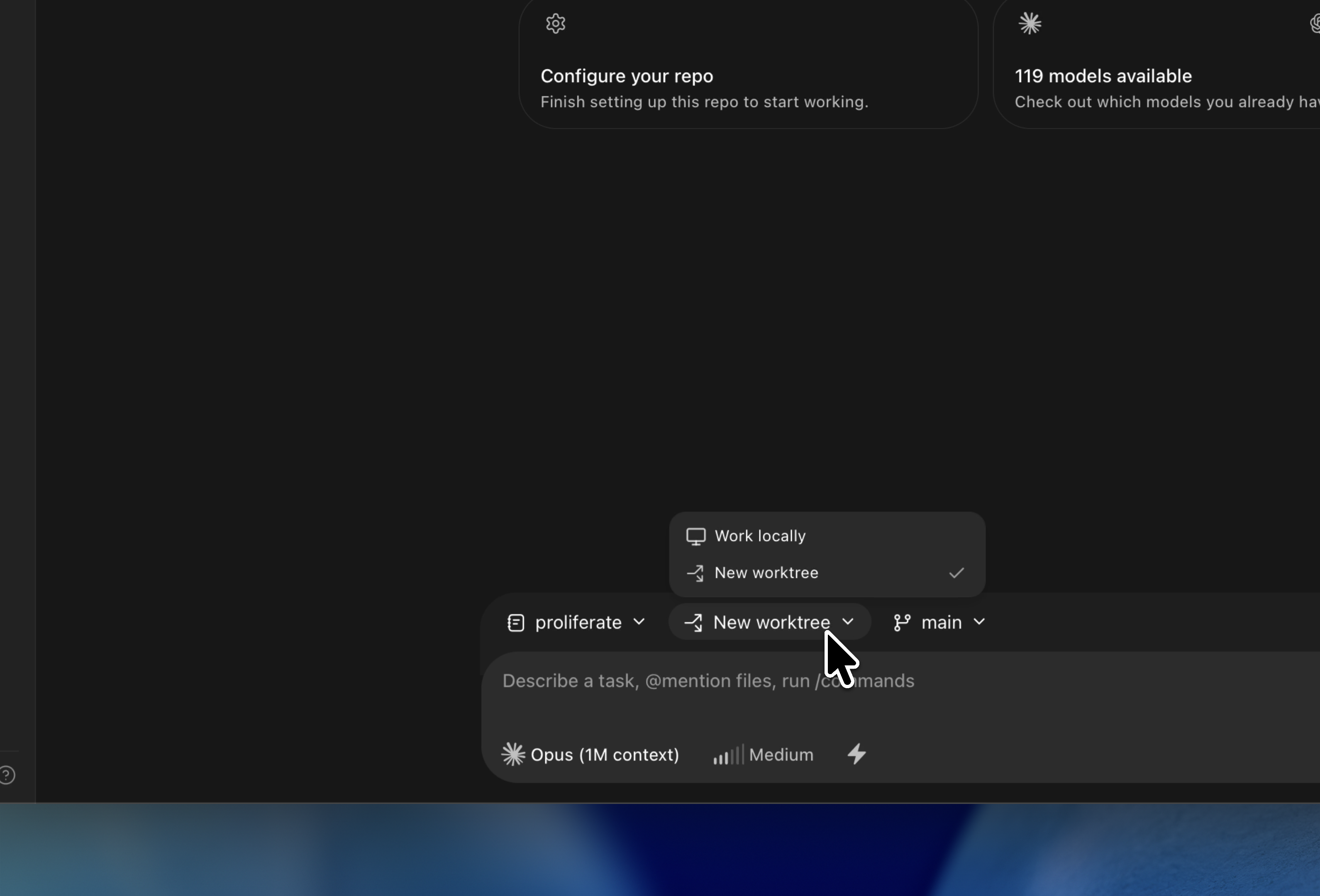
A workspace stays on the target it was created with. To move a branch somewhere else, publish it and open a new workspace against it.
How to use different harnesses
The workspace does not belong to any one coding agent. The harness is picked per chat, from the composer, so a single workspace can hold a Claude Code session, a Codex session, and an OpenCode session at the same time — all reading and editing the same checkout.
That matters in two ordinary situations:
- You want a second opinion on the same diff from a different agent.
- You started with one harness, hit its limits, and want to continue the task with another without moving branches.
Each agent runs through its own CLI or protocol, so you get its real behavior, its real permission modes, and its real models. See Agents.
What does isolation provide
Isolation here is about branch and workflow state, and it buys you:
- Edits land on that workspace's branch, not on your primary checkout.
- Setup scripts, run commands, and terminals execute from that workspace's directory.
- Each stream of work has its own review path and its own pull request.
- An experiment you throw away costs you a directory, not a
git reset.
Workspace isolation is development isolation, not a security boundary. Agents and commands still run on your machine, as you, with your credentials.
Using setup scripts
A fresh worktree has your repo's files but not the state your repo needs to
run: installed packages, generated clients, gitignored .env files. The
repository's setup script closes that gap. It runs once, inside the new
checkout, before you start working in it.
Proliferate scans your existing checkout for likely setup commands and for gitignored files a worktree would miss, and offers them as suggestions rather than guessing. The paired run command is what the workspace's Run action launches. See Setup & action scripts.
What is the lifecycle of a workspace
A workspace moves through four states, and they are deliberately separate so that hiding one never destroys work.
| State | What happens |
|---|---|
| Created | The checkout is registered or the worktree is created, then the setup script runs. |
| Active | Sessions, terminals, and review run against the checkout. |
| Archived | The workspace leaves the sidebar. Nothing is deleted and no disk is freed. |
| Pruned or purged | Pruning removes an old, clean managed worktree but keeps its history. Purging deletes the runtime record, sessions, and transcript too. |
Commits, branches, and pull requests survive all of it — they live in git, not in Proliferate. Full detail is in Lifecycle & storage.